Loudness Meters
Use this option to display the Loudness Meters.
Loudness is the subjective perception of loudness when listening to audio. This sense varies among listeners, depending on several listening conditions such as level, music style, age and even psychological state.
The Loudness Meters provide data about an audio file's momentary loudness, short-term loudness, integrated (overall) loudness, and loudness range. You can use these values when mastering for broadcast to ensure compliance with loudness standards (such as the CALM Act).
NOTE The loudness meters integrated into the channel meters is an improved version of the loudness meters window from older versions of Sound Forge Pro.
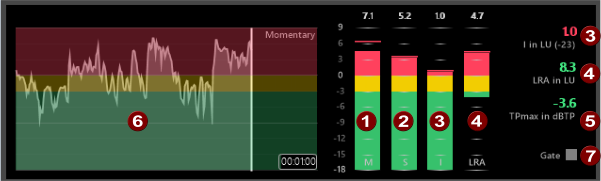
|
1 |
The M meter represents the momentary loudness — in loudness units (LU) — across all audio channels based on 400-millisecond integration windows. The momentary loudness is displayed numerically above the level meter. |
|
2 |
The S meter represents the short-term loudness — in loudness units — across all audio channels based on a 3-second integration window. The short-term loudness is displayed numerically above the level meter. |
|
3 |
The level meter I indicates the integrated loudness in loudness units (LU) for all audio channels over the total duration of the measurement. Above the level meter and in the field I next to the level meters, the integrated loudness is displayed numerically. When the target value is exceeded, the numerical value is displayed in red. |
|
4 |
The level meter LRA indicates the loudness range in loudness units (LU) of the momentary and short-term levels as minimum/maximum value. The display in the LRA field next to the level indicators indicates the total amount (maximum - minimum value). The Loudness Range measurement provides a standardized method of determining the dynamic range of the signal. |
|
5 |
The TP max meter represents the true peak levels in dB FS. True peaks are calculated using a higher sample rate than peak meters in the Channel Meters window for increased accuracy. The True Peaks value indicates whether the maximum peak level according to the loudness standard has been exceeded. In this case the value is displayed in red. To reset the clipping indicator, right-click in the loudness indicator and select Reset from the context menu. |
|
6 |
The graph at the left side of the window displays the measured Momentary Loudness (M) to help you with identifying parts with different loudness throughout you audio data. When the curve goes into the lower green area of the display, the current loudness is below the target value as defined by the loudness standard (see below), when it goes into the yellow area, it is above the target value but still within the standard. In the red area, the norm is exceeded. |
|
7 |
If the Gate indicator in the lower right corner is lit, the level is too low for a certain time. The measuring algorithm then excludes these values from the calculation of the integrated value assuming these parts are silent and therefore can be omitted. |
When playback is restarted, all values are reset and the loudness is recalculated. You can also reset the values during playback by right-clicking in the loudness display and selecting Reset from the context menu.
NOTE Select the Enable surround processing for files with 6 channelscheck box on the Status tab of the Preferences dialog if you want to treat audio with six channels as surround audio when measuring loudness (a gain of ~1.5 dB is applied to the left and right surround channels). If the option is not active, all channels contribute equally to the loudness measurement.
Presets
In the context menu of the Loudness meter there is the submenu Loudness Meter Presets. The default preset is Default. To hide the current loudness curve, select the preset Default (without curve). With the preset Extended the level displays get an extended range of values and the history display gets its own color for too low levels.
Loudness Standard
The main purpose of the loudness indicator is to ensure compliance with internationally standardized loudness norms. The standards specify target values for the level indicators Integrated and True Peak. If these target values for are exceeded, the corresponding values are displayed in red.
Sound Forge Pro supports loudness standards EBU R 128 mode and ATSC A 85 mode. To change the loudness norm, open the Preferences dialog from the Options menu and select Loudness Configuration at the bottom of Status tab.
-
When using the EBU R 128 mode the target value of the level meter Integrated is -23 LUFS and the maximum value for TP max is -1.0 dB FS. Use this mode when mastering to EBU (European Broadcasting Union) standards.
-
When using the ATSC A 85 mode, the target value of the level meter Integrated is -24 LUFS and the maximum value for TP max is -2.0 dB FS. Use this mode when mastering to ATSC (North American Advanced Television Systems Committee) standards.
TIP Tip: The dialog Normalize in the menu Process supports a Normalize by loudness standards and a loudness range between 3 and 18 LU.
Meter Scale
To change the scale of the level meters, select ranges in the context menu of the loudness meter and select the option EBU +9 or EBU +18.
-
When using EBU +9, the meters are displayed with a range of -18 to +9 LU.
-
When using EBU +18, the meters are displayed with a range of -36 to +18 LU.
Choosing a wide range allows you to see low-level signals at the expense of precision display at high levels.
Select Absolute (-23 LUFS) if you want to display loudness values as Loudness Units Full Scale (LUFS). When Absolute (-23 LUFS) is not selected, all values are expressed as Loudness Units (LU) relative to the selected mode (EBU R 128 Mode or ATSC A 85 Mode).
True Peak stop filter
Peak levels may be miscalculated if audio signals are asymmetrical or if a DC offset is present. To enable filtering, select True-Peak Cut Filter from the loudness display context menu.
True Peak Meters
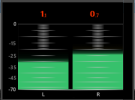
The True Peaks meter represents the peak levels in dB FS. True peaks are calculated using a higher sample rate than peak meters in the Channel Meters window for increased accuracy.
The True Peaks indicator shows you whether the target loudness has been exceeded. The display is reset when you restart playback. You can also right-click in the True Peaks window and select Reset from the context menu.
Last modified on June 09, 2026
Was this page helpful?
What did you particularly like about this page?
What did you dislike about this page?
Thank you for your feedback.